Usage
Initialize a PySTIXView object to start building your graph. You can use the notebook option if you are going to use the library in a Jupyter Notebook.
from pystixview import PySTIXView

stix_view = PySTIXView(notebook=True)
Add a node
You can add a STIX object as graph node by passing a stix2 object, a string or a dict representing the object:
from stix2 import ThreatActor

threat_actor = ThreatActor(name="Adversary Bravo")
stix_view.add_node(threat_actor)
malware = """{
     "type": "malware",
     "spec_version": "2.1",
     "id": "malware--d1c612bc-146f-4b65-b7b0-9a54a14150a4",
     "created": "2015-04-23T11:12:34.760Z",
     "modified": "2015-04-23T11:12:34.760Z",
     "name": "Poison Ivy Variant d1c6",
     "malware_types": [
         "remote-access-trojan"
     ],
     "is_family": false,
     "kill_chain_phases": [
         {
             "kill_chain_name": "mandiant-attack-lifecycle-model",
             "phase_name": "initial-compromise"
         }
     ]
 }"""

stix_view.add_node(malware)
Supported STIX Object
PySTIXView supports the STIX Domain Object and Cyber Observable Object types:
- STIX Domain Objects
- AttackPattern
- Campaign

- CourseOfAction

- Grouping

- Identity

- Indicator

- Infrastructure

- IntrusionSet

- Location

- Malware

- MalwareAnalysis

- Note

- ObservedData

- Opinion

- Report

- ThreatActor

- Tool

- Vulnerability

- STIX Cyber Observabel Object
- AutonomousSystem
- DomainName

- EmailAddress

- EmailMessage

- File

- IPv4Address
- IPv6Address

- MACAddress
- NetworkTraffic
- URL

- UserAccount

Default Data Markings are also supported:
- TLP_AMBER

- TLP_GREEN

- TLP_WHITE

- TLP_RED

You can also add your custom STIX Object to the graph. See this section for details.
Using Bundles
A Bundle is a collection of STIX Objects. You can create a graph from a Bundle by using the function pystixview.PySTIXView.add_bundle():
stix_view = PySTIXView()
with open("threat-actor-leveraging-attack-patterns-and-malware.json", "r") as fd:
    stix_view.add_bundle(fd.read())
This feature is particularly suitable for handling a large number of STIX Objects, saved in JSON files or coming from TAXII servers or other sources. For example, you can use PySTIXView to display the graph of the STIX representation of a MISP Event, using the library MISPtoSTIX21Parser:
from pystixview import PySTIXView
from misp_stix_converter import MISPtoSTIX21Parser

# Get a MISPEvent object from your MISP instance
# ...

parser = MISPtoSTIX21Parser()
parser.parse_misp_event(event)
bundle = parser.bundle

stix_view = PySTIXView(notebook=True)
stix_view.add_bundle(bundle)

Add a relationship
You can add a relationship between two nodes by providing a stix2 Relationship object, a string or dict representing the relationship.
relationship = {
    "type": "relationship",
    "spec_version": "2.1",
    "id": "relationship--d44019b6-b8f7-4cb3-837e-7fd3c5724b87",
    "created": "2020-02-29T18:18:08.661Z",
    "modified": "2020-02-29T18:18:08.661Z",
    "relationship_type": "uses",
    "source_ref": threat_actor['id'],
    "target_ref": "malware--d1c612bc-146f-4b65-b7b0-9a54a14150a4"
}

stix_view.add_relationship(relationship)
Show graph
Once you have added nodes to the graph and connected them via relationship, you can generate the HTML to render the graph. You can use the function pystixview.PySTIXView.save_graph() to save an HTML file or the function pystixview.PySTIXView.show_graph() to get the HTML code. The latter is especially useful within Jupyter Notebook, since the graph will be visible in the notebook via an iframe.
stix_view.show_graph('graph.html', width='500px', height='300px')

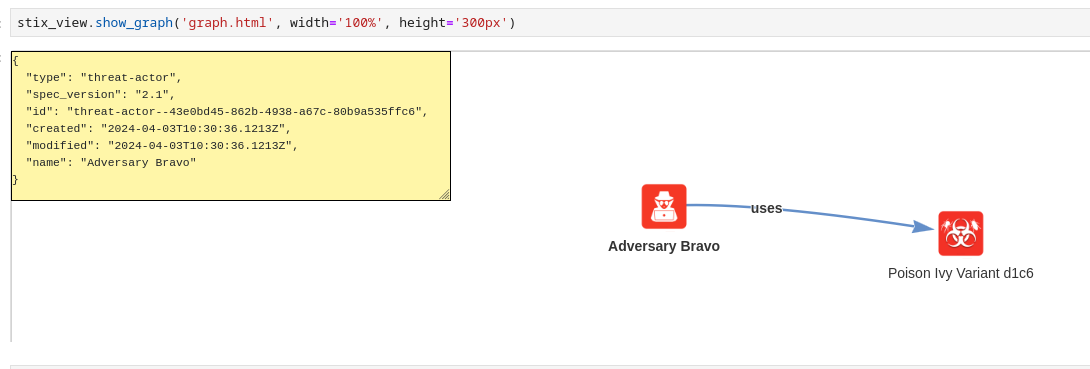
Clicking on a node will display the JSON content of the STIX Object:
You can modify the visualization of the graph by using several options to filter and customize graph nodes. In particular, the style option let you to choose the look and feel of node icons. You can pick from the following styles:
square-flat (default)
square-dark
square-lite
noback-flat
noback-dark
round-flat
Custom STIX Object Types
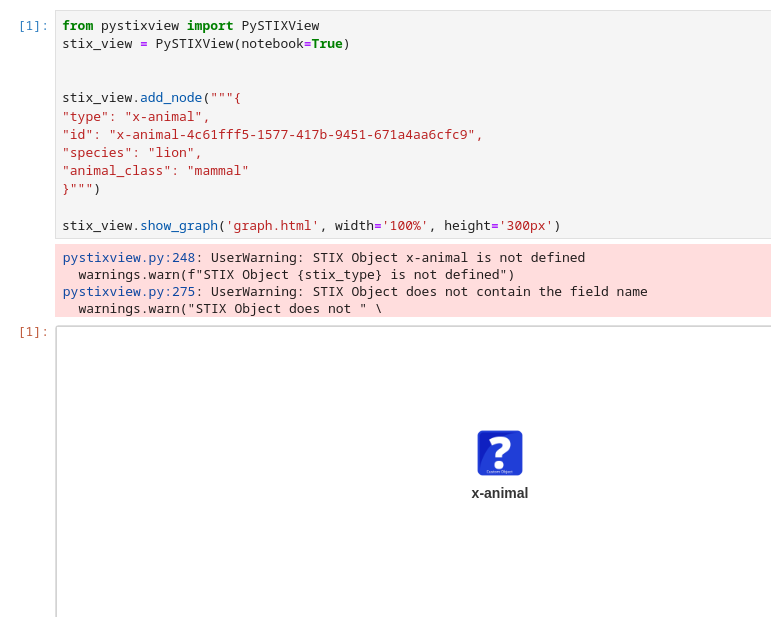
You can add also custom STIX Objects as nodes to the graph, however a warning will be raised and a default icon will be used:
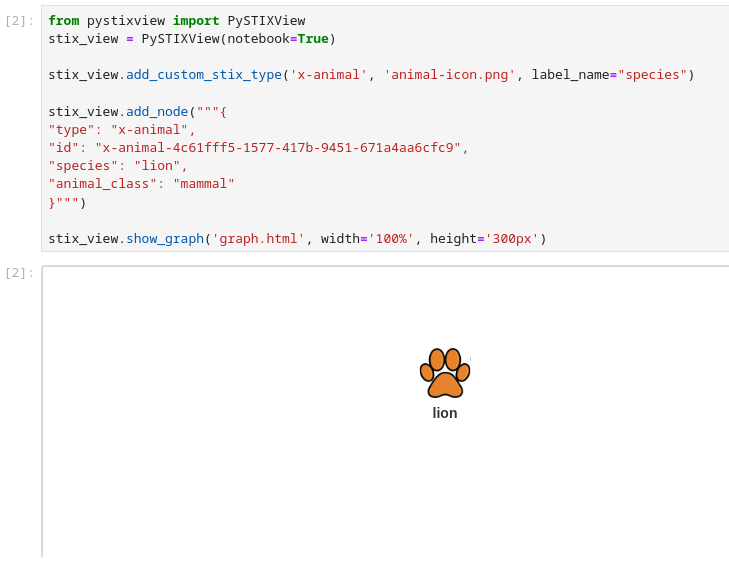
It is recommended to “register” the custom STIX object by providing a custom icon (or a color). You can also select which field use as node label:
from stix2 import CustomObject, properties

stix_view.add_node("""{
    "type": "x-animal",
    "id": "x-animal-4c61fff5-1577-417b-9451-671a4aa6cfc9",
    "species": "lion",
    "animal_class": "mammal"
}""")
stix_view.show_graph('graph.html', width='100%', height='600px')
You can as well use stix2 CustomObject to add the nodes to the graph:
from stix2 import CustomObject, properties
@CustomObject('x-animal', [
   ('species', properties.StringProperty(required=True)),
   ('animal_class', properties.StringProperty()),
])
class Animal(object):
  def __init__(self, animal_class=None, **kwargs):
     if animal_class and animal_class not in ['mammal', 'bird', 'fish', 'reptile']:
         raise ValueError("'%s' is not a recognized class of animal." % animal_class)

stix_view.add_custom_stix_type('x-animal', 'animal-icon.png', label_name="species")
animal = Animal(species="lion",
            animal_class="mammal")

stix_view.add_node(animal)

stix_view.show_graph('graph.html', width='100%', height='600px')